
Accessing the Receipt Generator
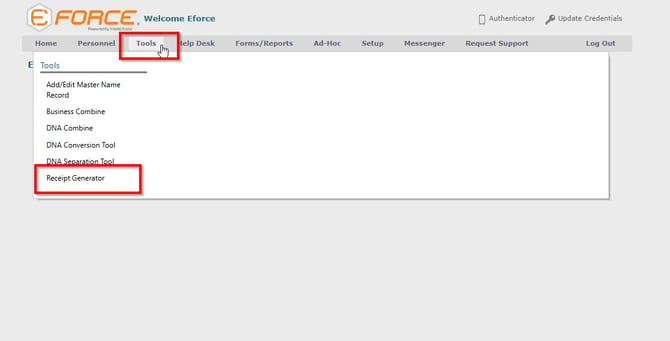
- Navigate to the Eforce Command page.
- Locate the Tools tab at the top of the page.
- If you do not see the Tools tab, contact the EFORCE Support Team for assistance.
- Click on the Tools tab to open the dropdown menu.
- Select Receipt Generator from the list of available options.
Setups for the Receipt Generator
-
Navigate to the Eforce Command page.
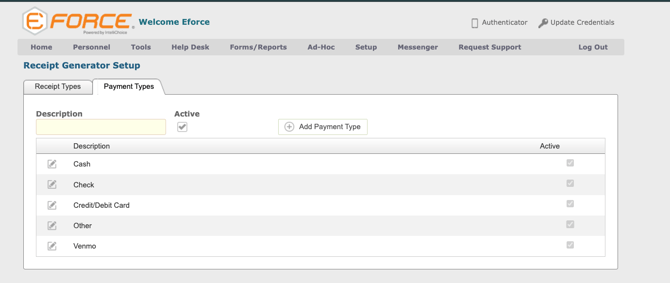
- Locate the Setup tab at the top of the page (Requires Administrative permissions).
- Select Receipt Generator Setup.
- You will then be able to create/deactivate/activate:
- ReceiptTypes
- Payment Types
Overview of the Receipt Generator
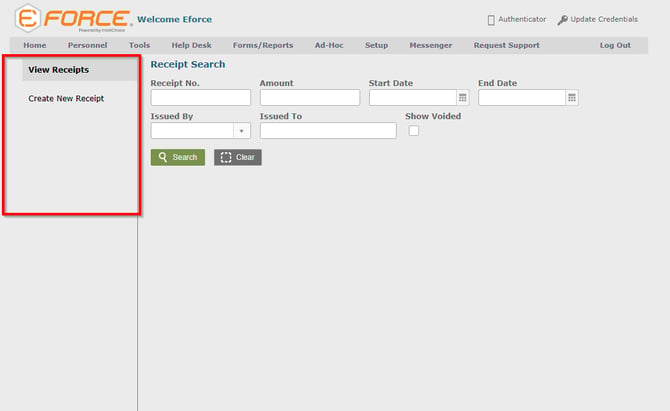
Once inside the Receipt Generator module, you will see two options on the left-hand side:
- View Receipts
- Create New Receipt
Viewing Existing Receipts
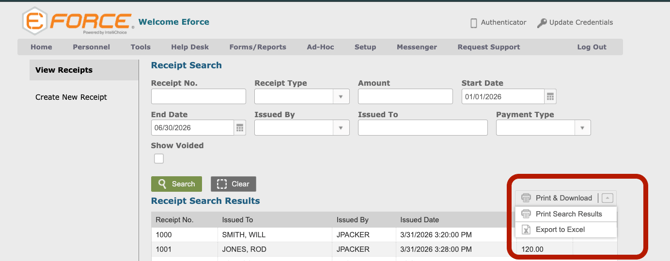
The View Receipts option allows you to search and review previously generated receipts by the following criteria:
- Receipt No.
- Receipt Type (Found in Version 2026.2+)
- Amount
- Date Range
- Issued By
- Issued To
- Payment Types
Common Uses:
- Conducting audits
- Correcting payment information
- Printing and archiving records
Steps:
- Click View Receipts.
- Use the available search fields to locate a receipt such as Receipt # or Received By
- Select the desired receipt to review or print.
- Select "Print & Download" to:
- Print the search results
- Export to Excel
Creating a New Receipt
The Create New Receipt option allows you to generate a new payment receipt for a person in the Eforce system.
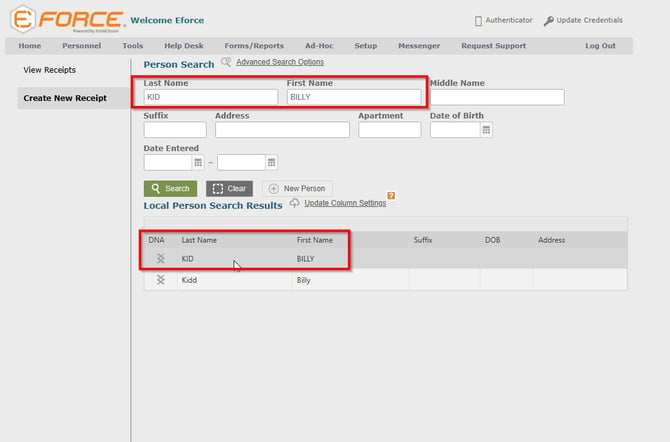
Step 1: Search for a Person
- Click Create New Receipt.
- Search for the individual using one or more of the following:
- First Name
- Last Name
- Date of Birth
- System identifiers (via Advanced Search)
- Select the Name Record at the bottom of the page for the desired individual
Step 2: Enter Payment Information
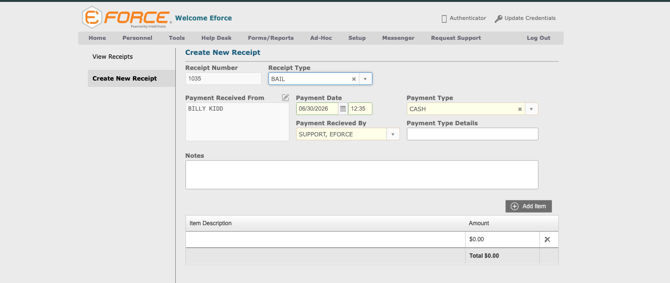
- Verify that the correct individual has been selected.
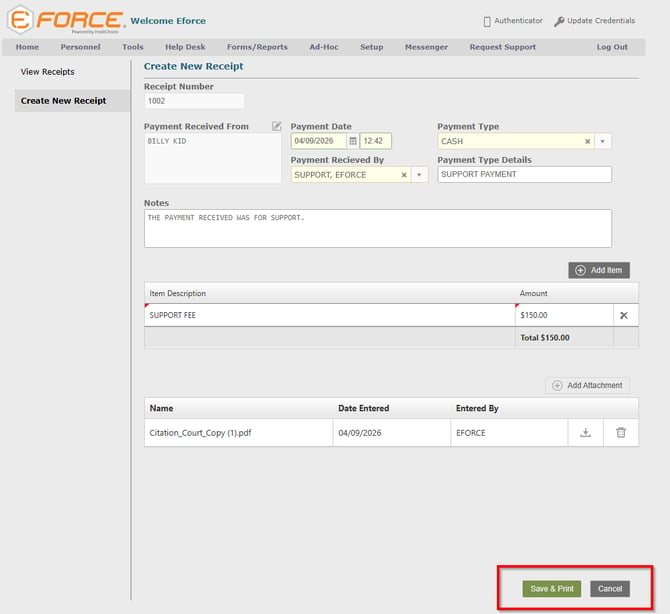
- Enter the payment details, including:
- Receipt Type (dropdown is configured in the above setup steps)
- Payment Type (e.g., Cash, Check, Credit Card)
- Received By (who accepted the payment)
- Any additional relevant payment details
Step 3: Add Payment Items
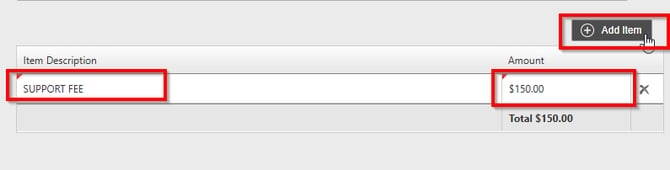
The system allows you to itemize payments for better tracking and clarity.
- Navigate to the Item Description section.
- Click the Add Item button located at the top right of the section.
- Enter each item along with its corresponding payment amount.
- Click the "X" icon to the right of the item to remove it.
Step 4: Add Notes (Optional)
- Use the Notes section to include any additional context or important information related to the payment.

Step 5: Add Attachments (Optional)
You can include supporting documentation with the receipt.
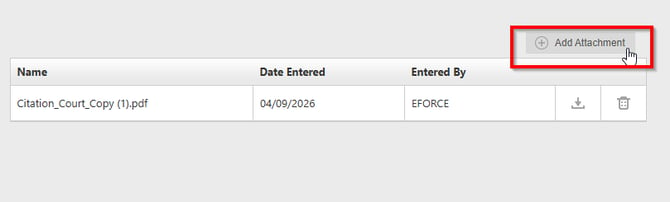
- Navigate to the attachments section.
- Click the Add Attachment button located at the top right.
- Upload files such as images or PDFs.
- You can also view attachments that were previously added by other users for reference.
- To download attachments entered on the receipt, click the download icon on the right.
- To remove any attachment, click the "Trash Can" icon on the right.
Step 6: Finalize the Receipt
- Review all entered information for accuracy.
- Click Save and Print located at the lower right of the page to save the receipt.
- If you need to cancel, click the Cancel button located next to the Save option.
After Saving the Receipt
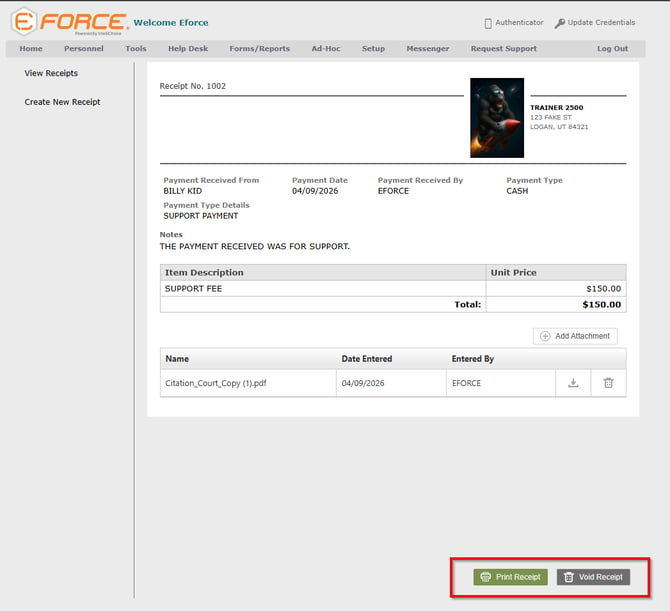
- Once saved, the receipt will be available to print or download immediately.
- You can also VOID the receipt at any moment in case payment does not go through or any issues arise. Do this by clicking the "Void Receipt" button on the lower right of the page
Tips & Best Practices
- Always double-check payment details before saving a receipt.
- Use itemized entries for clearer record-keeping.
- Attach supporting documents when applicable.
- Use detailed notes for unusual or complex transactions.
- Regularly review receipts for accuracy and compliance.